
How to Add Google Analytics to a Site (using GTM)
January 1, 2024
Get the measurement ID from Google Analytics 4
1. Login to your Google Analytics account.
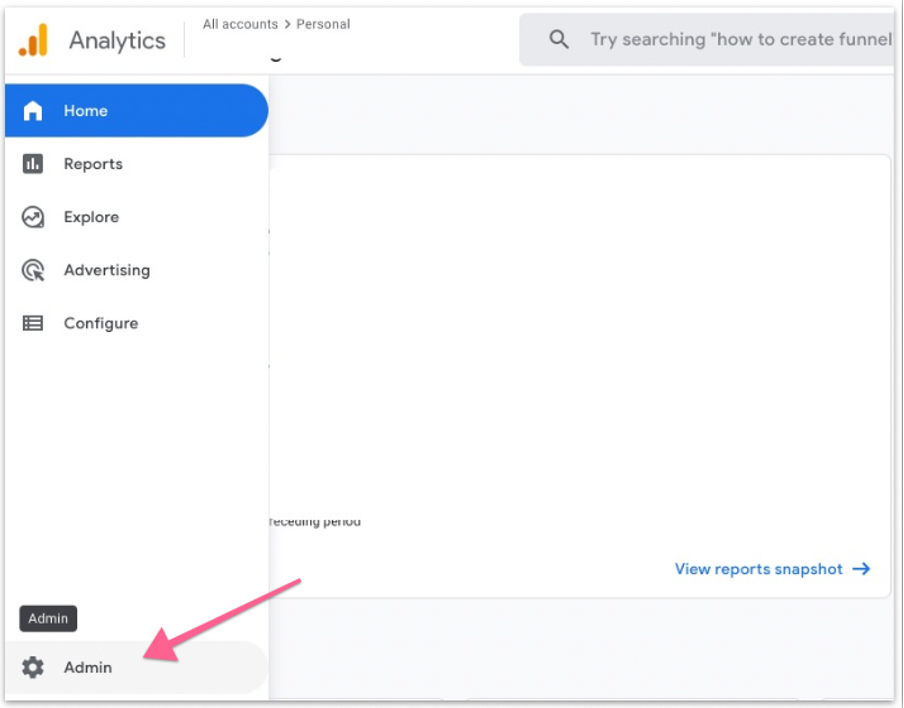
2. Click “Admin”.
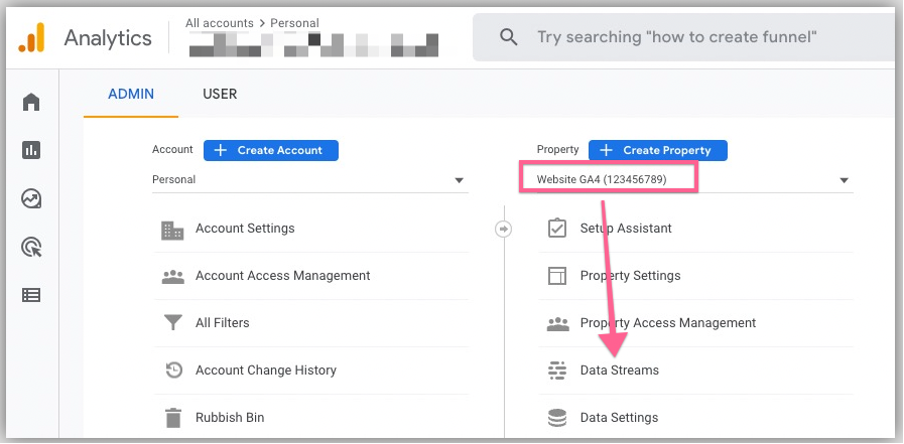
3. Make sure you’ve selected the correct property (website) and select “Data Streams”.
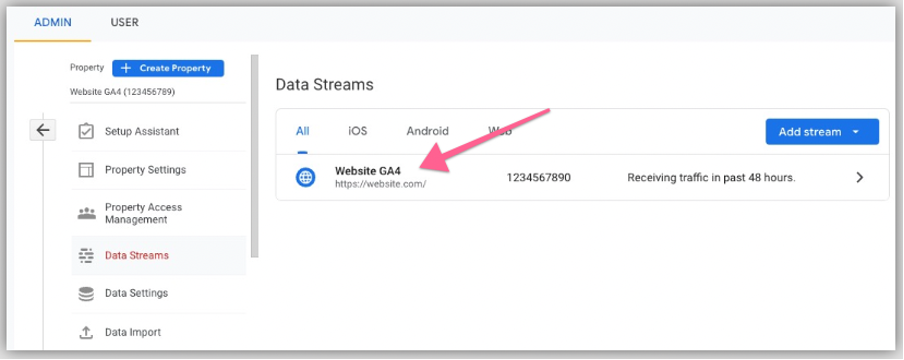
4. Select your website that you want to implement Google Analytics 4.
5. Click on the measurement ID to copy it on your clipboard.
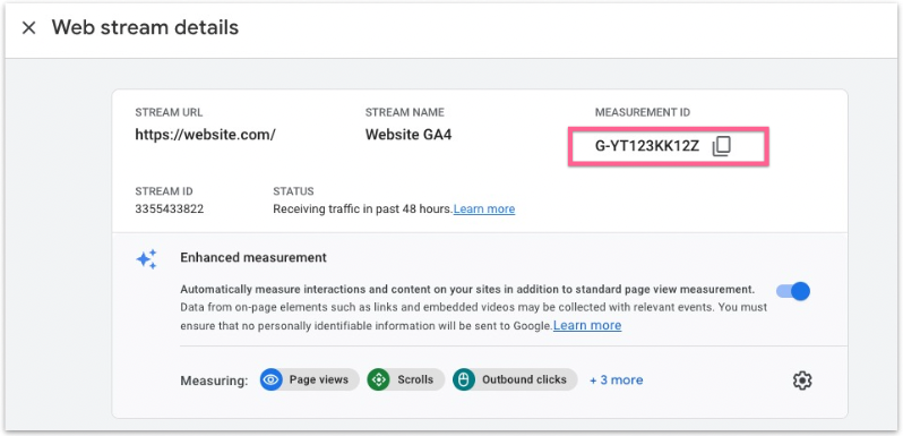
6. You can paste it in a text editor or notepad. You will need this later on.
Verify your set-up with a Tag Assistant Companion
- Go to http://tagmanager.google.com and sign in with your account details.
- Select the container that is set up on your website.

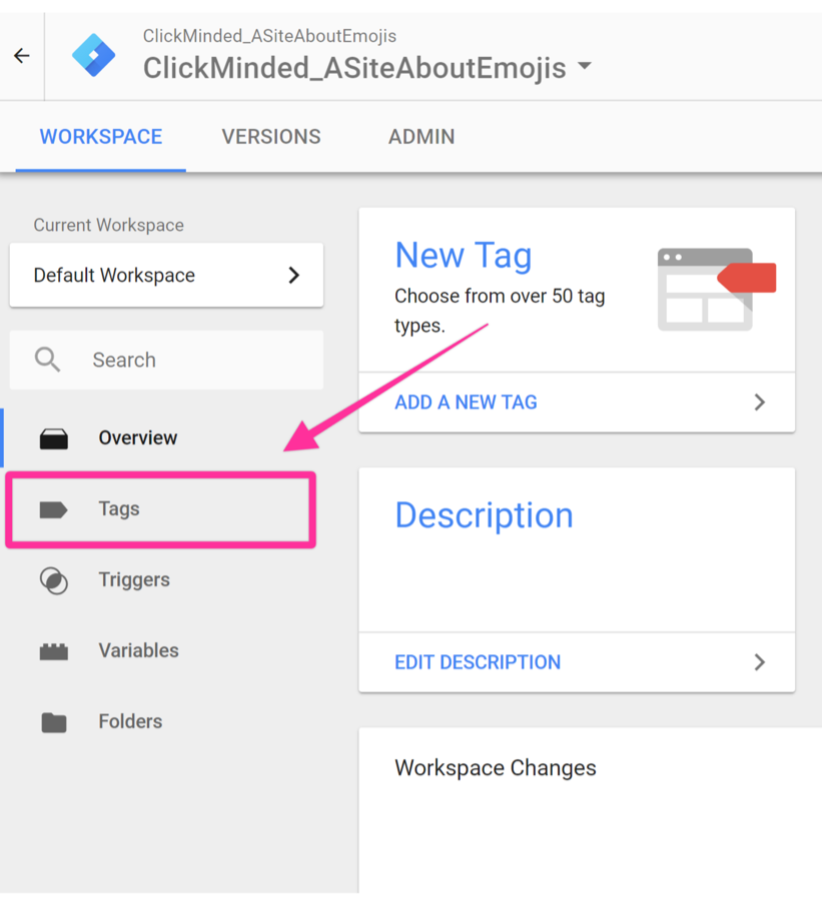
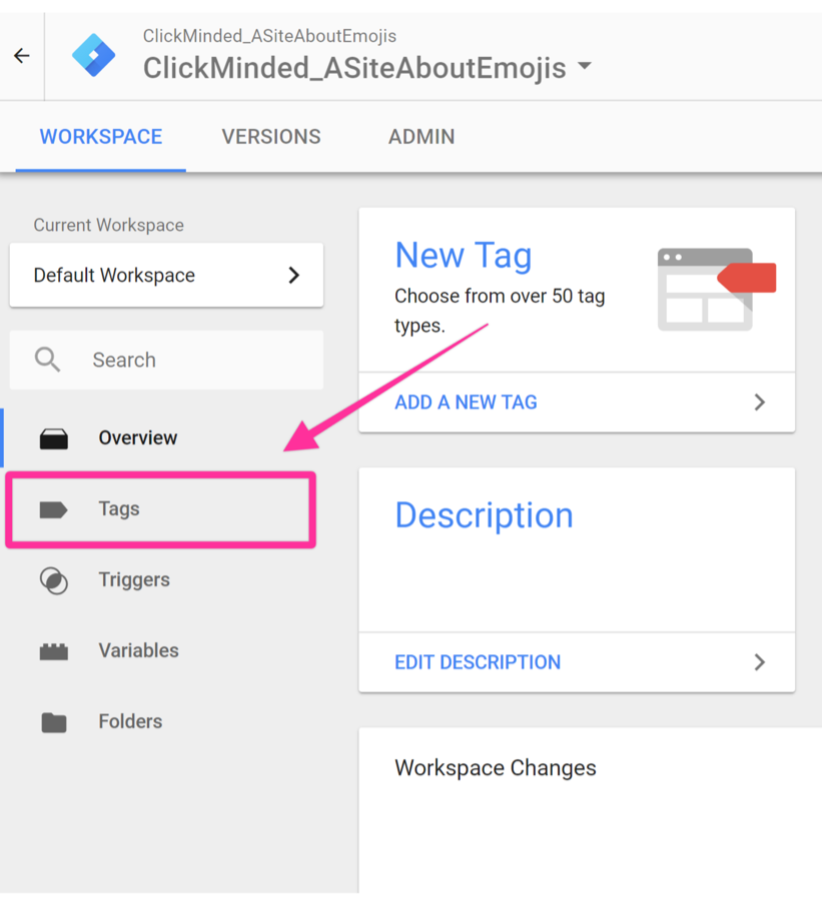
- Go to “Tags”:
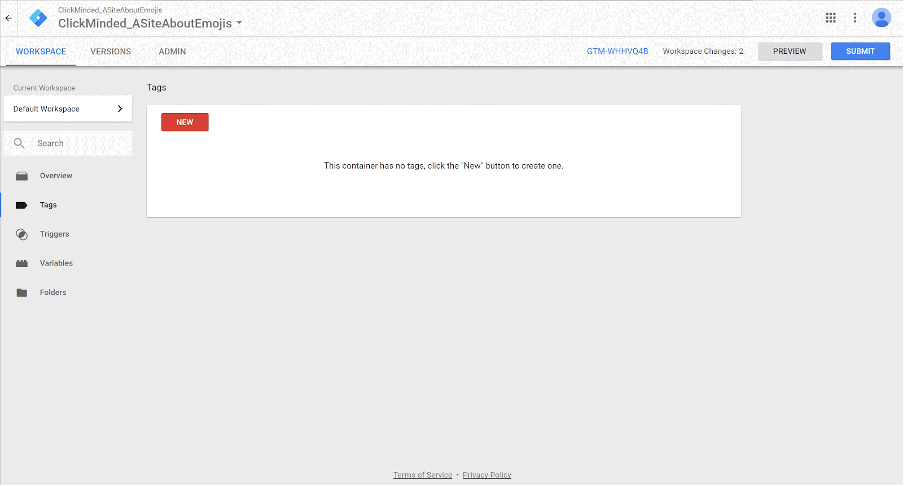
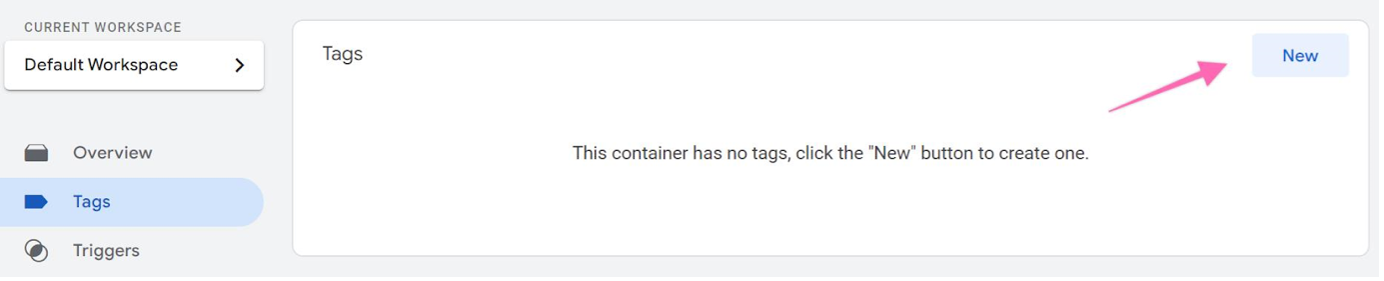
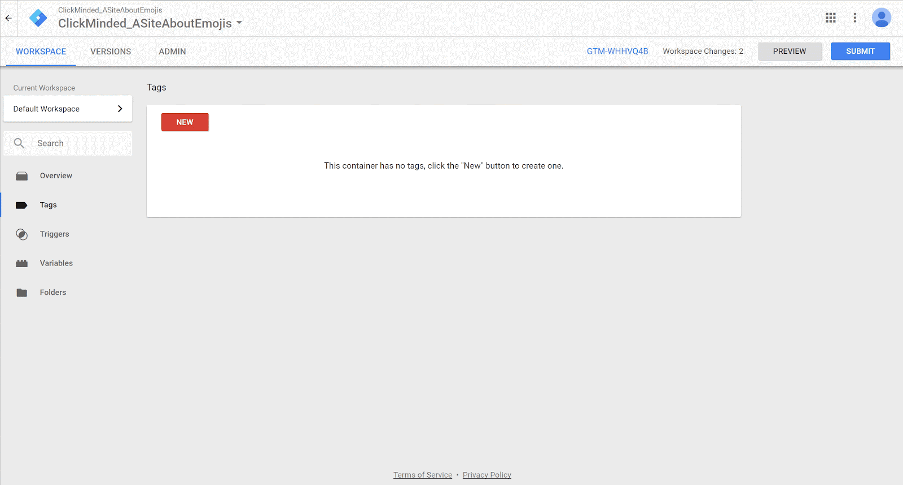
- Click on “New” and rename your tag. It is recommended that it contains a mention to Google Analytics, it makes it easier in the future to locate the tags you are looking for.
-
- Note: When creating new tags it’s recommended to define a naming convention from the beginning, this keeps your Google Tag Manager set up neatly organized and easy to maintain for many years to come.

[Abbreviated Name Of Tool]_[Use for this tag] is a good start.
-
-
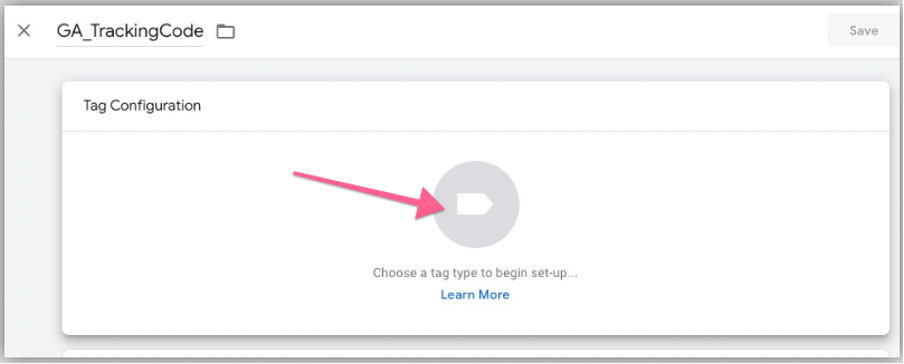
- e.g: “GA_TrackingCode”
- e.g: “GA_TrackingCode”
-
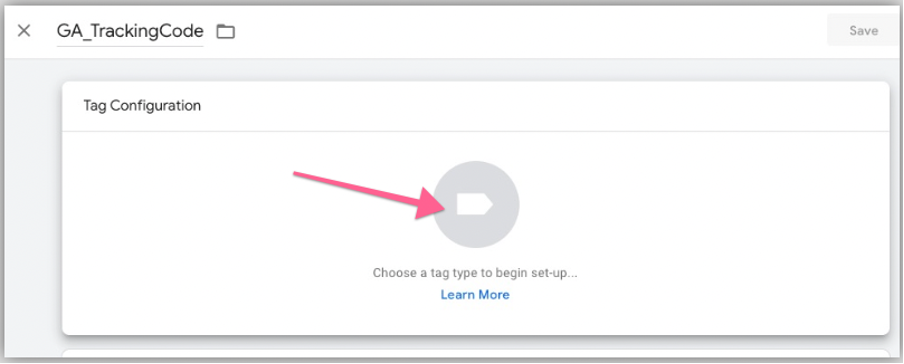
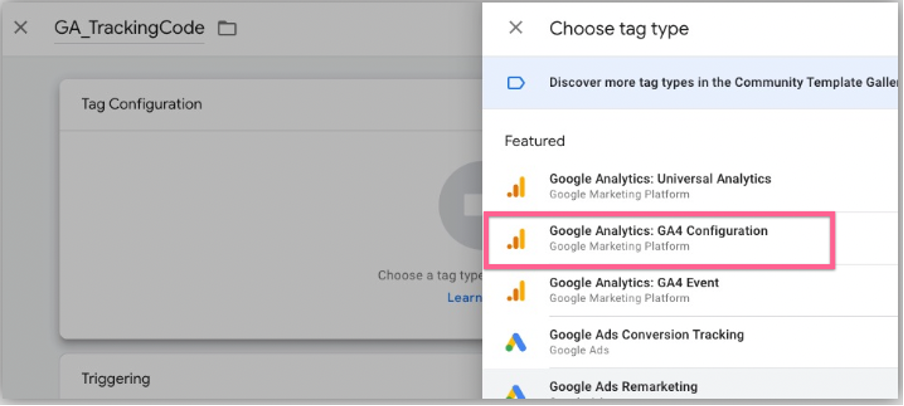
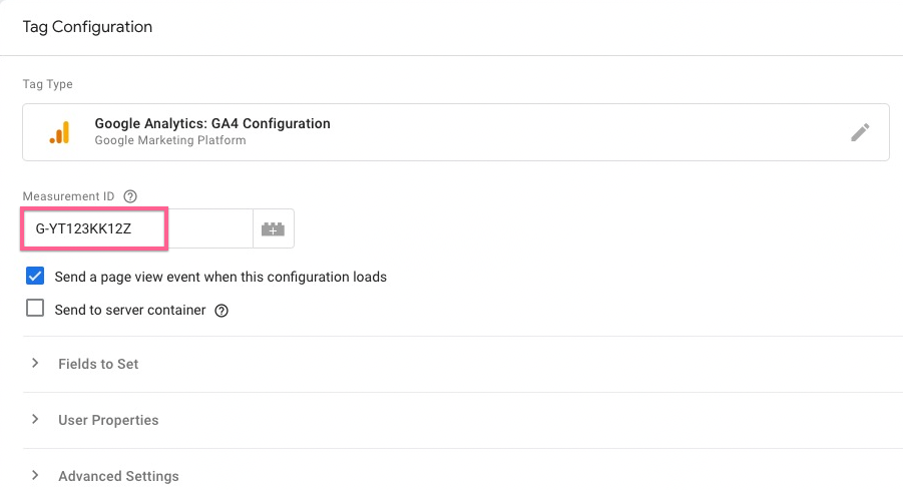
- Click on the “Tag Configuration” section → Select “Google Analytics 4 configuration”:
- Click on the “Tag Configuration” section → Select “Google Analytics 4 configuration”:
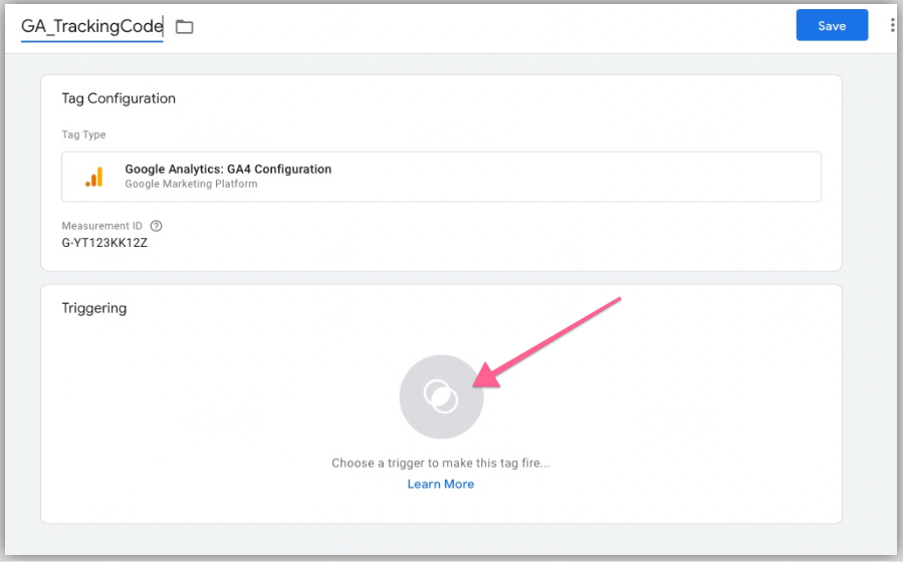
- Next, click on the Trigger icon to set up a trigger for this tag.
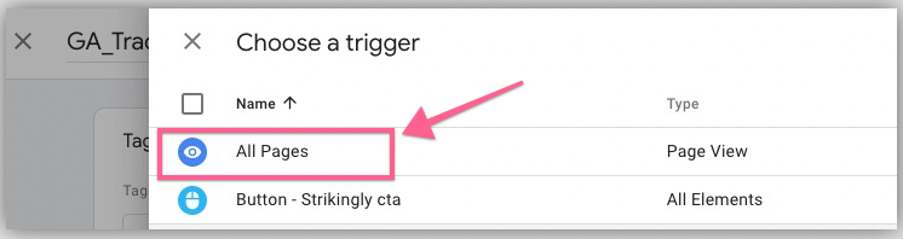
- Select “All Pages”. This is to fire the Google Analytics 4 on all pages on your website (recommended).
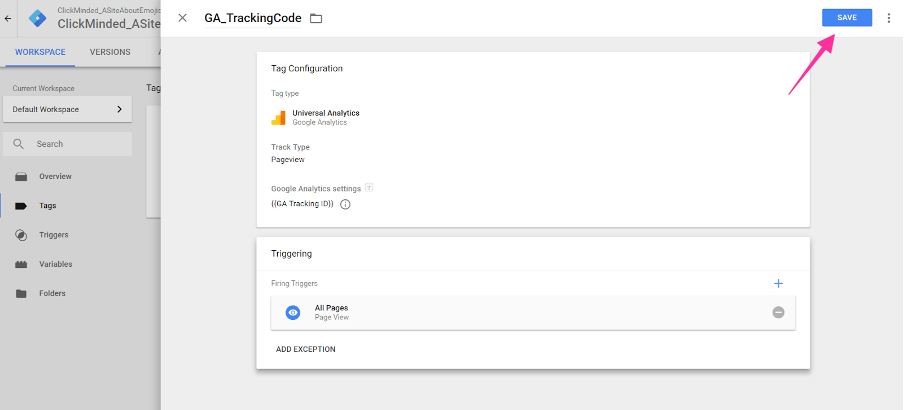
- You are now ready to save your settings by clicking on “Save”:
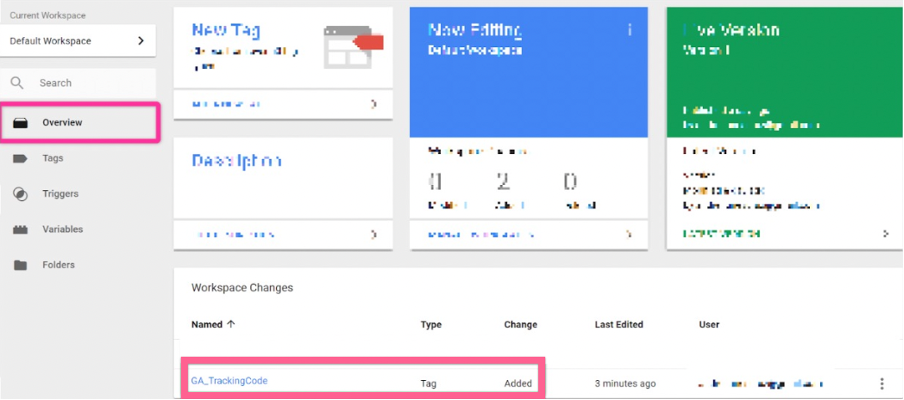
- If you now click on “Overview” on the sidebar, this is how your Google Tag Manager overview dashboard should look like:
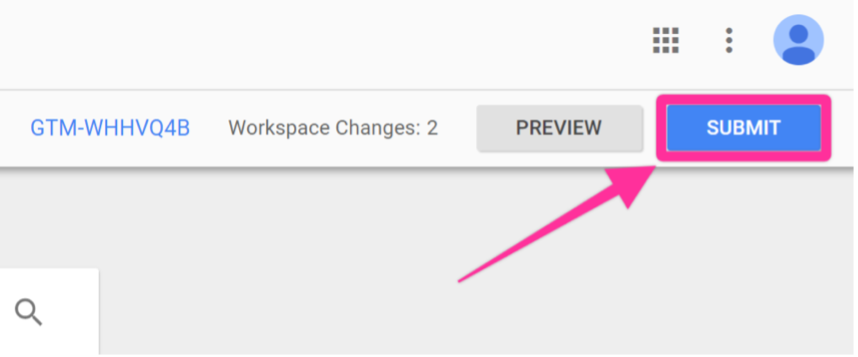
- If everything looks ok, you are now ready to hit “Submit”:
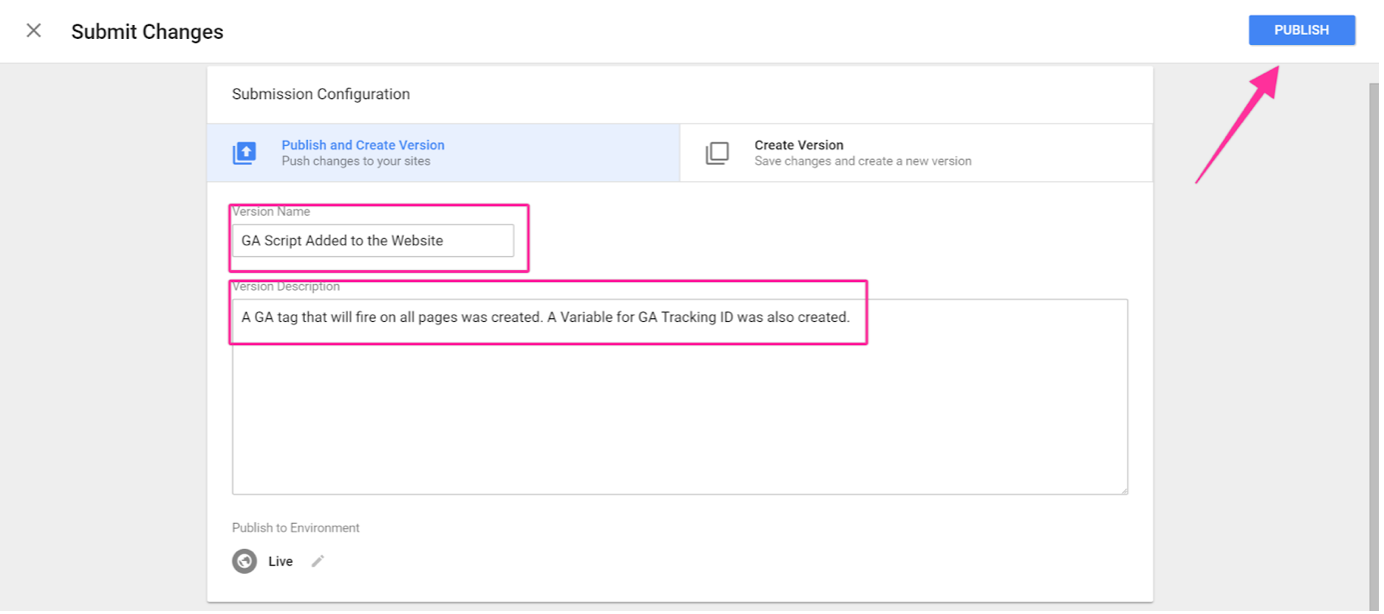
- In the Submission Configuration panel, you will be given the chance to add a name and description to this version. After you have done so, hit “Publish”.
- Note: Adding a name and description is optional but recommended. You should enter the information here that will make it easy to know what changes are being made.
- Note: Adding a name and description is optional but recommended. You should enter the information here that will make it easy to know what changes are being made.
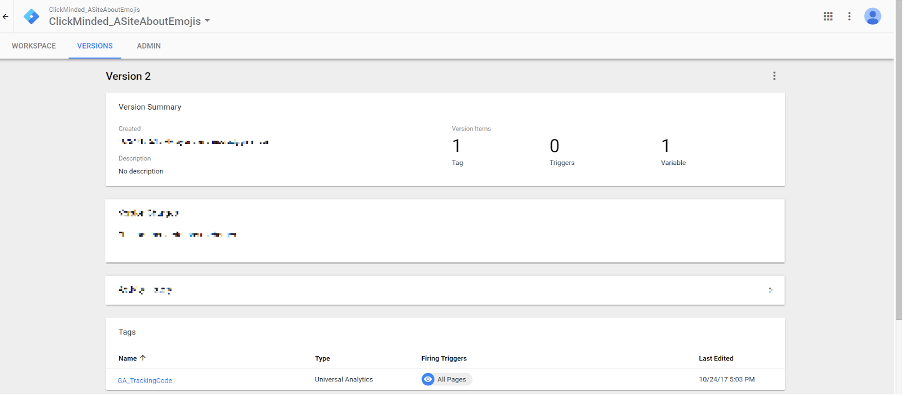
- You will now be taken to see the summary of the changes you’ve just made:
Set up Google Tag
Note: If you haven’t added Google Tag Manager to your site, you can check out our Google Tag Manager Installation SOPs for WordPress (SOP 004, web version ), Shopify (SOP 065, web version ) , or Squarespace (SOP 066 web version ).
- Go to http://tagmanager.google.com and sign in with your account details.
- Select the container that is set up on your website.
- Go to ‘Tags’:
- Click ‘New’ and rename your tag. It is recommended that it contains a mention to Google Analytics 4 as it would make it easier in the future to locate the tags you are looking for.
- Note: When creating new tags it’s recommended to define a naming convention from the beginning, this keeps your Google Tag Manager set up neatly organized and easy to maintain for many years to come.[Abbreviated Name Of Tool]_[Use for this tag] is a good start.
- e.g: ‘GA_TrackingCode’
- e.g: ‘GA_TrackingCode’
- Note: When creating new tags it’s recommended to define a naming convention from the beginning, this keeps your Google Tag Manager set up neatly organized and easy to maintain for many years to come.[Abbreviated Name Of Tool]_[Use for this tag] is a good start.
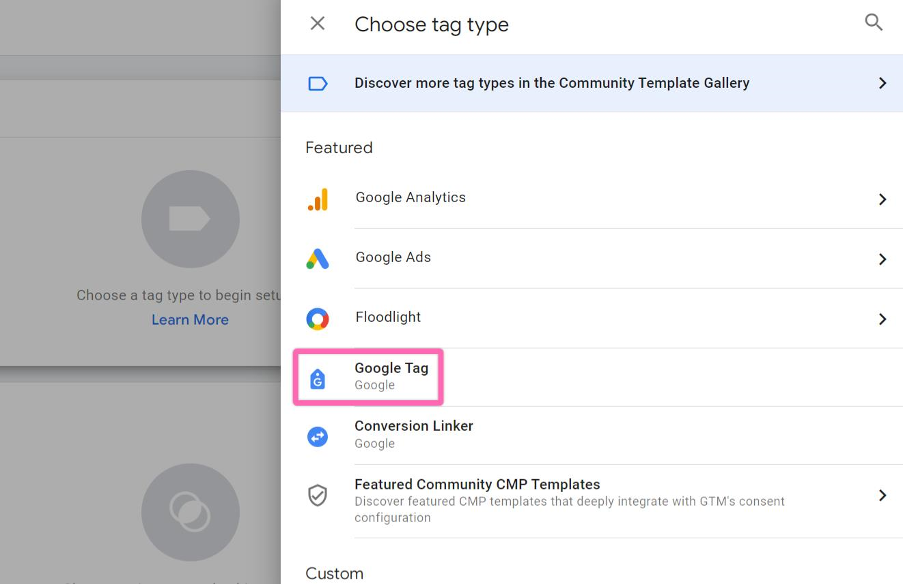
- Click on the ‘Tag Configuration’ icon and select ‘Google Tag’:
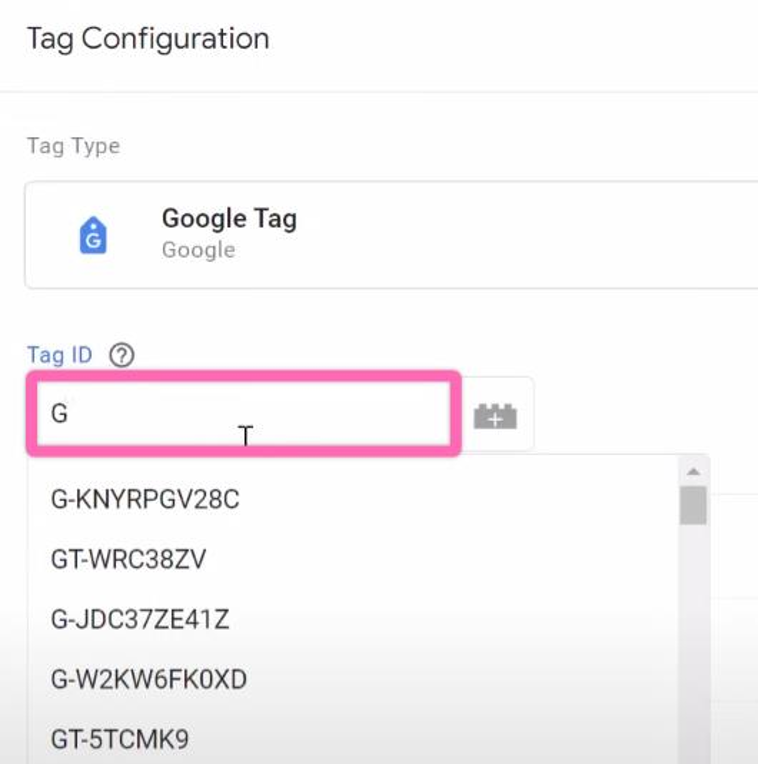
Note: In early September 2023, the new Google tag has now replaced the Google Analytics 4: GA4 Configuration tag with two settings variables. Read more here. - Paste the Measurement ID that you copied from Google Analytics 4 earlier.
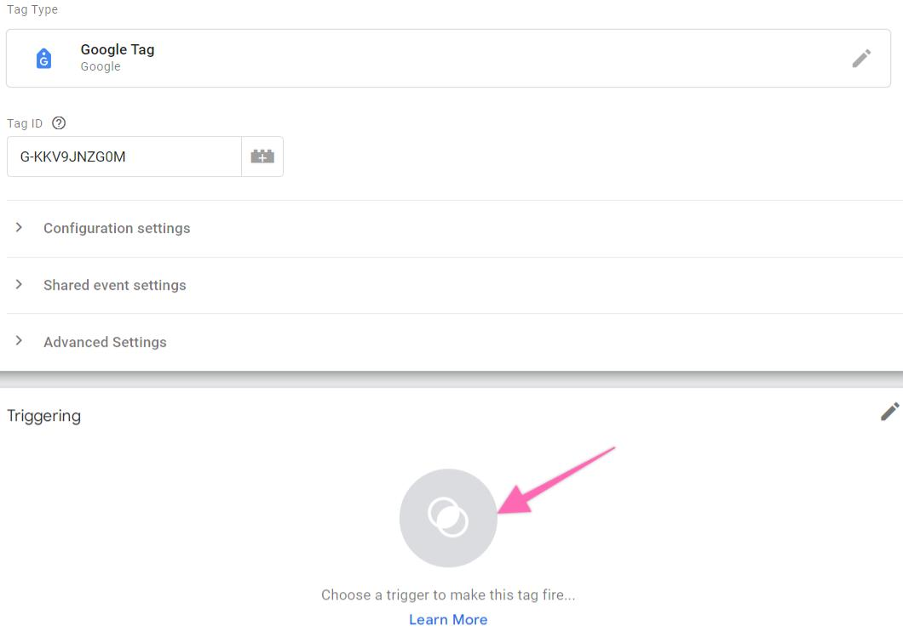
Note: if you would like to set up the configuration settings and event settings, please find the valid parameters here: - Next, scroll down and click on the Trigger icon below to set up a trigger for this tag.
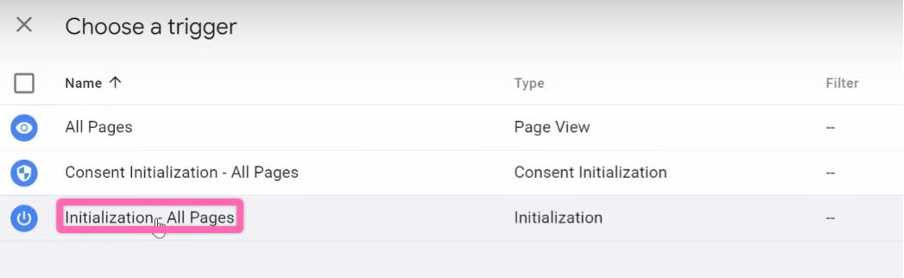
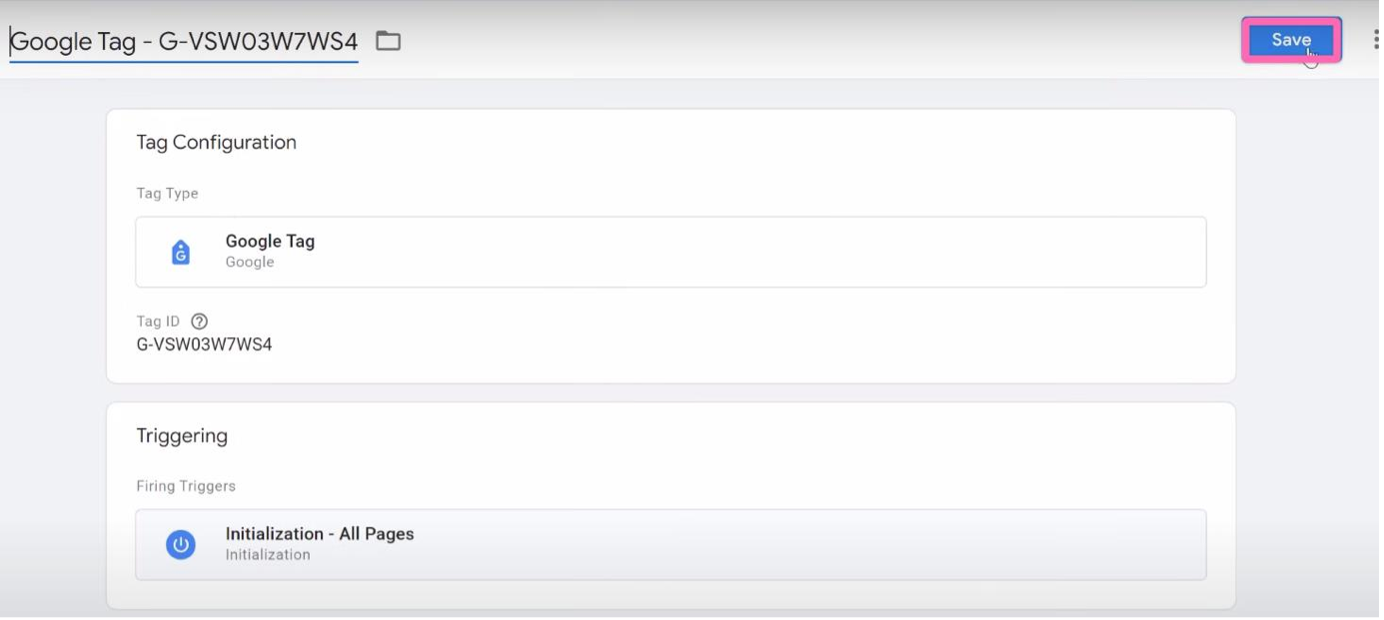
- Select ‘Initialization- All Pages’. This is to fire the Google Analytics 4 on all pages on your website (recommended).
- You are now ready to save your settings by clicking ‘Save’:
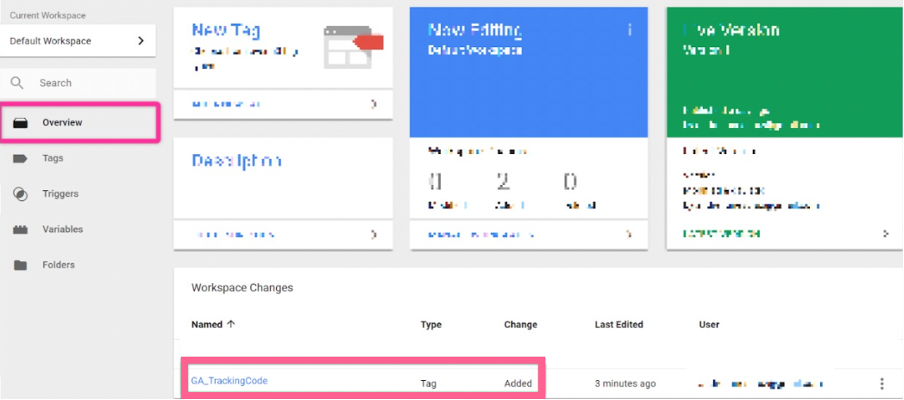
- Next, go to the ‘Overview’ on the sidebar, this is how your Google Tag Manager overview dashboard should look like:
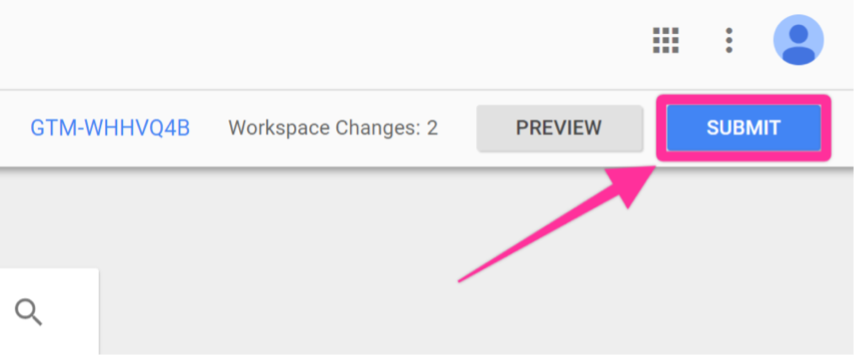
- If everything looks ok, you are now ready to hit ‘Submit’
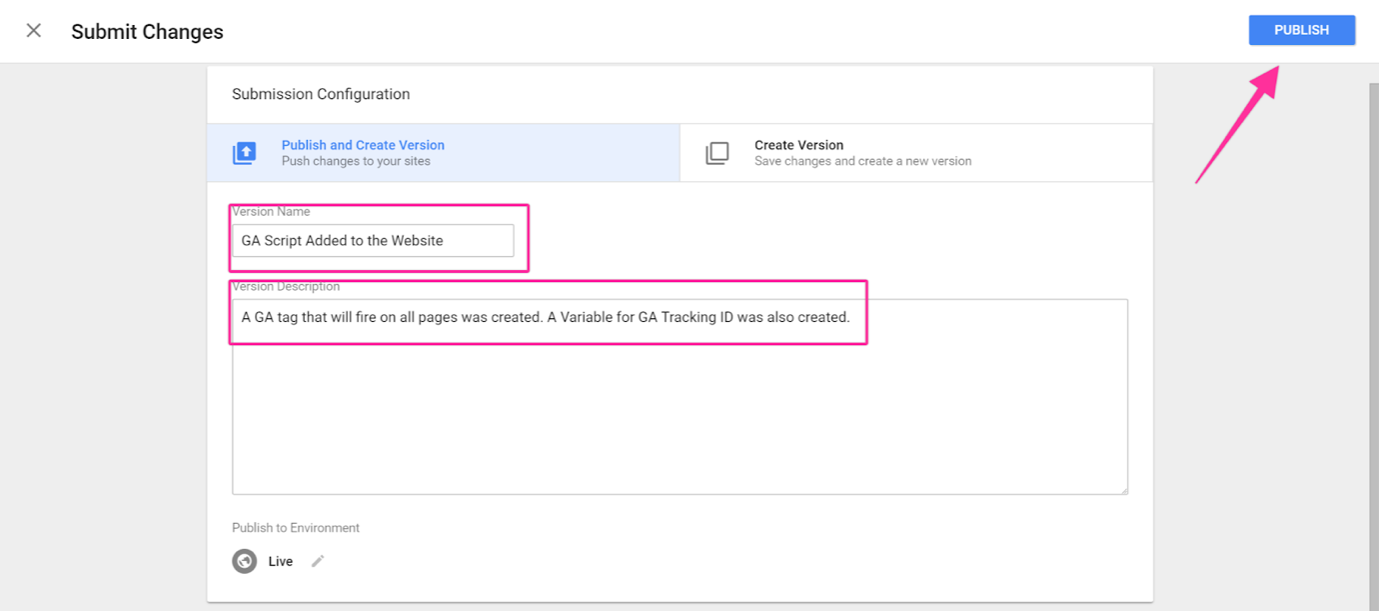
- In the Submission Configuration panel, you will be given the chance to add a name and description to this version. After you have done so, hit ‘Publish’.
- Note: Adding a name and description is optional but recommended. You should enter the information here that will make it easy to know what changes are being made.
- Note: Adding a name and description is optional but recommended. You should enter the information here that will make it easy to know what changes are being made.
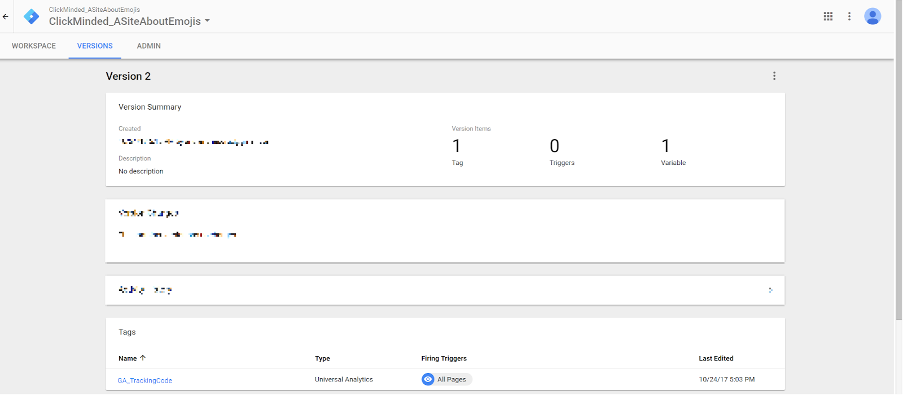
- You will now be taken to see the summary of the changes you’ve just made:

Verify your setup inside Google Analytics
- Open Google Analytics 4 by heading over to https://analytics.google.com
- You will be taken to your account dashboard.
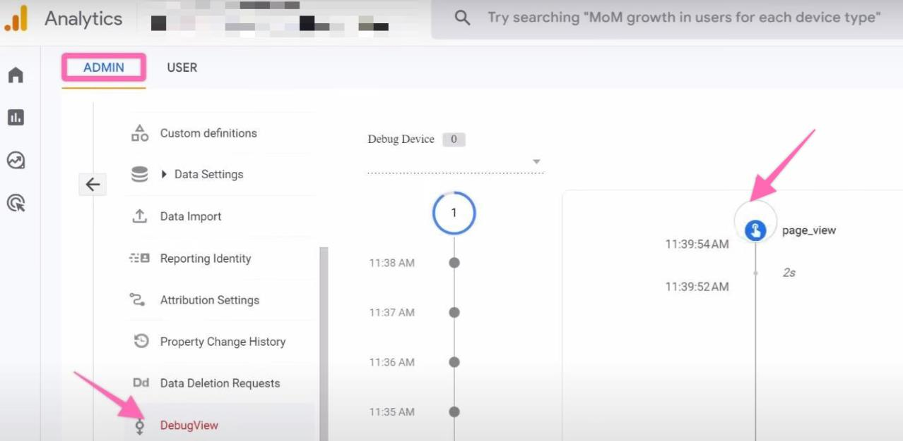
- To ensure that the Google Tag has been fired, go to your Google Analytics 4 account, click Admin>Data Settings>Debug view. Here, you should see the most updated page view on your right.
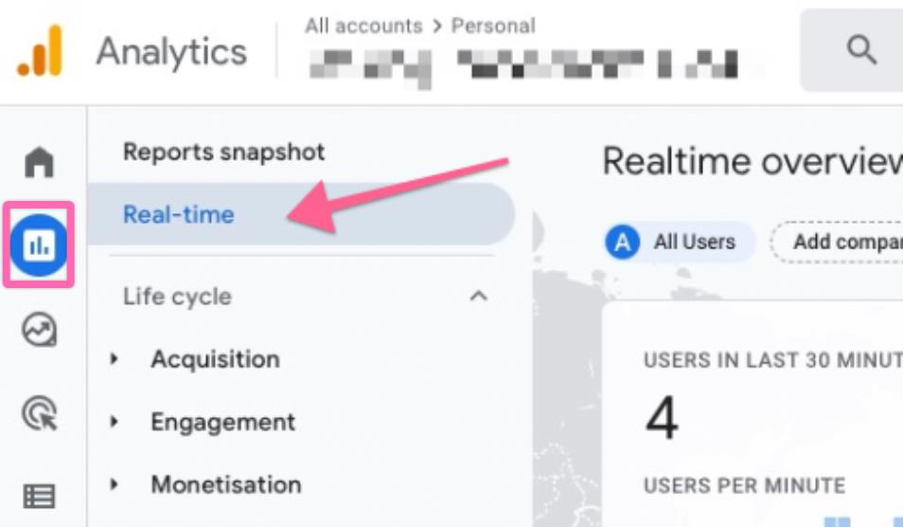
- Alternatively, you may also verify through the real-time report under the ‘Report’ icon on the sidebar.
- In another Google Chrome tab or window open up your website URL.
- Now go back to the Google Analytics 4’ tab and wait a few seconds.
- You should see (at least) 1 active user on the website:
Posted in Uncategorized