
Adding Google Tag Manager to a WordPress Site
January 1, 2024
Important: This SOP works only for self-hosted WordPress sites, aka WordPress.org and not WordPress.com
- Download the Google Tag Assistant Legacy Chrome Extension (Free).
- Alternatively, you can also use Google’s official Tag Assistant.
- Sign up for Google Tag Manager (Free):
- You’ll need to log in to your Google account.
- If this is your first time creating a Google Tag Manager Account, you’ll be redirected to the account creation page.
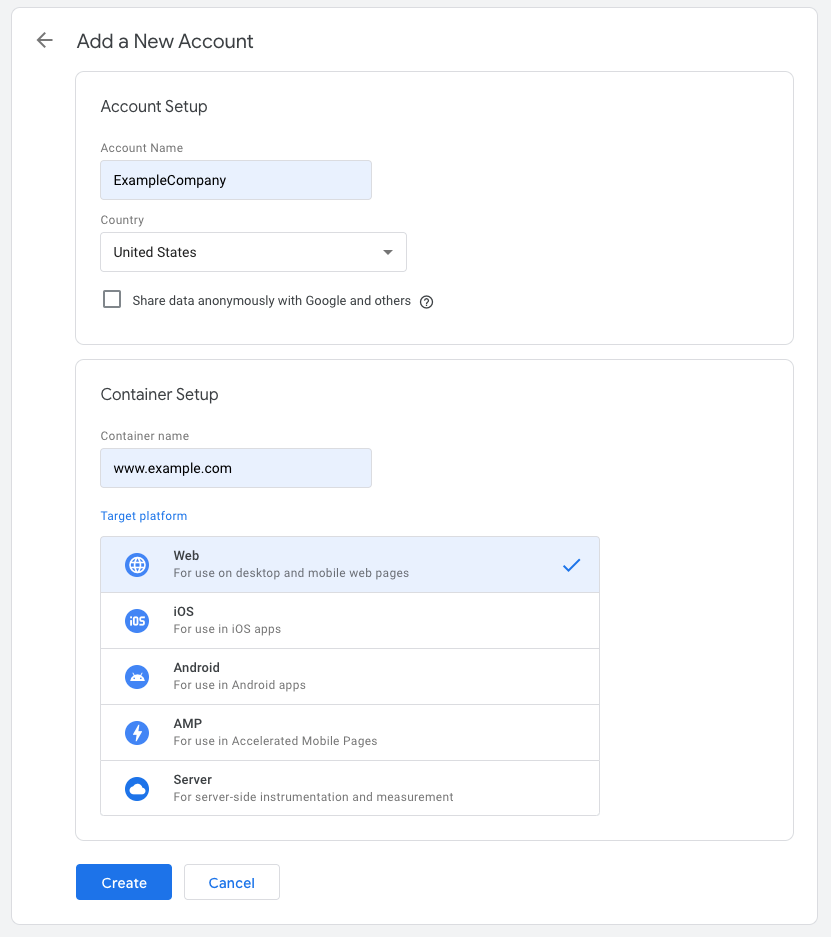
- Fill in the following information:
- Account Name — The name you use to identify this account.
- Country — Country origin.
- Container name — Insert the URL of your website
- Target platform — Where do you plan to add Google Tag Manager (e.g. on your website, mobile, etc)
- (Optional) Share data anonymously with Google

- Once finished. Click “Create”.
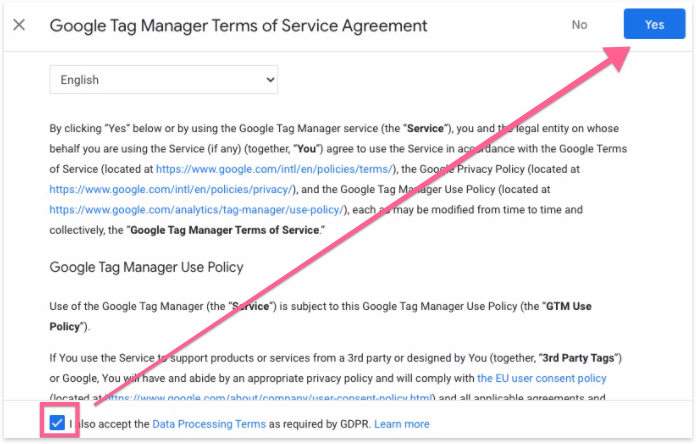
- You’ll see a Google Tag Manager Terms of service pop up. Select the checkbox and click “Yes”.
- You will see the code to install Google Tag Manager. Ignore this since you won’t be manually adding code to your WordPress site. Click “OK”.
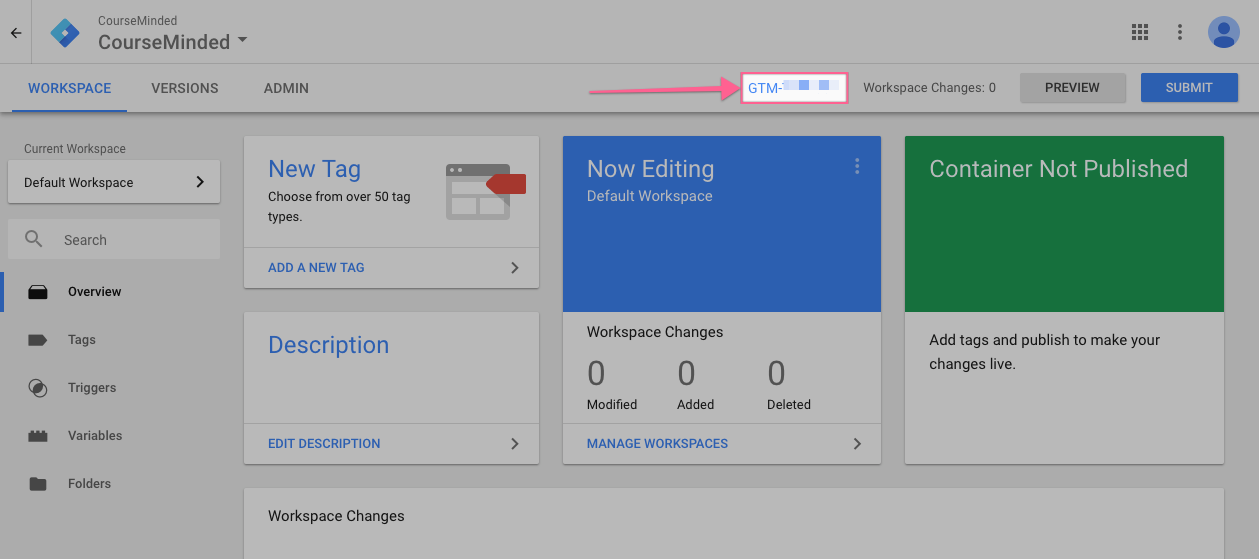
- Once you are in your Workspace, make note of your Google Tag Manager ID.
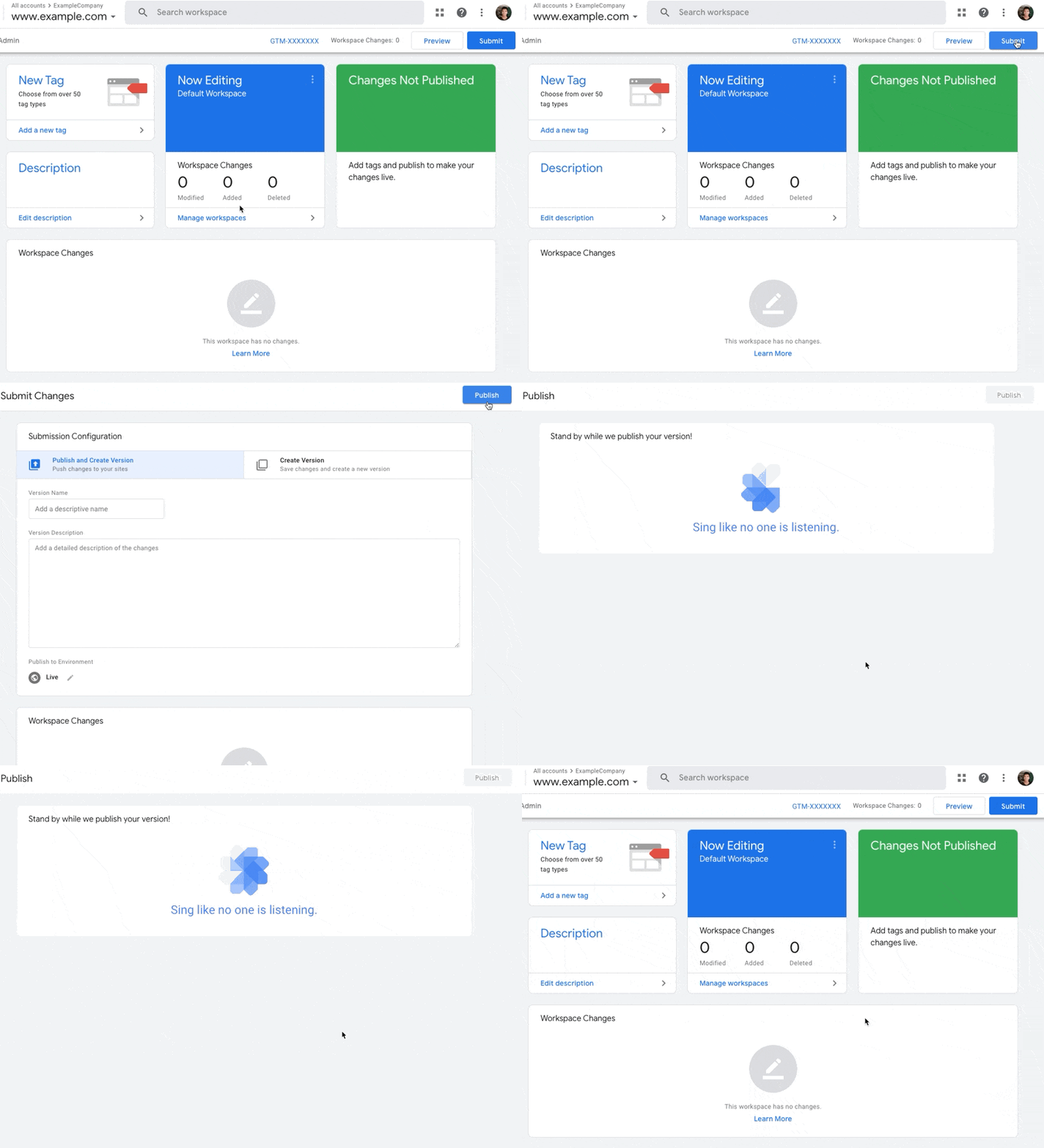
Click on Submit > Publish > Continue to publish your Google Tag Manager container
Install and configure the Google Tag Manager WordPress plugin
- Log into your WordPress site.
- In the WordPress sidebar, go to Plugins > Add New
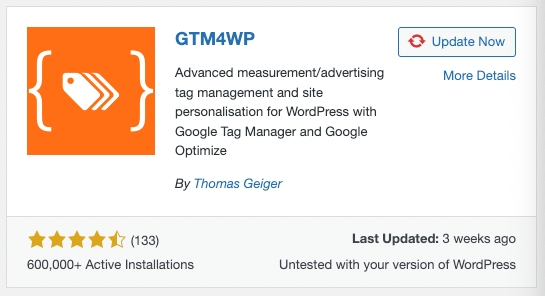
- Enter “Google Tag Manager for WordPress” in the search box
- Install the GTM4WP plugin (the image may vary)
- Activate the plugin
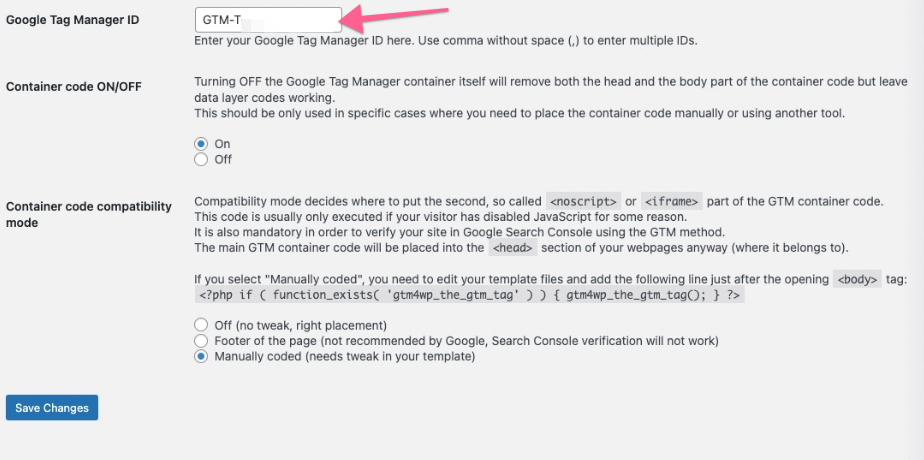
- In the WordPress sidebar, go to Settings > Google Tag Manager
- Paste your Google Tag Manager ID (the one you got from the Google Tag Manager dashboard) in the available field
- The plugin offers several ways to install the container code on your site. Before you implement any of these, we recommend you create a backup of your site.
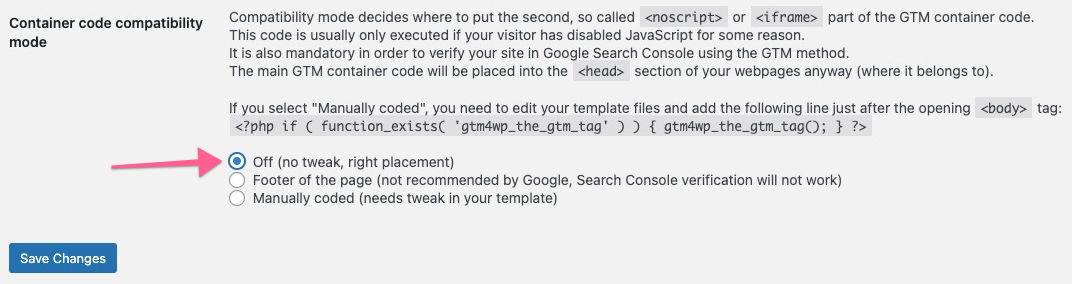
- Option 1: Off — with this option, the plugin will try to figure out the right placement for the container for you. This is the easiest option but there’s a small risk it might break something on the frontend of your site. If you decide to go with codeless injection, select this option from the list and click “Save changes”
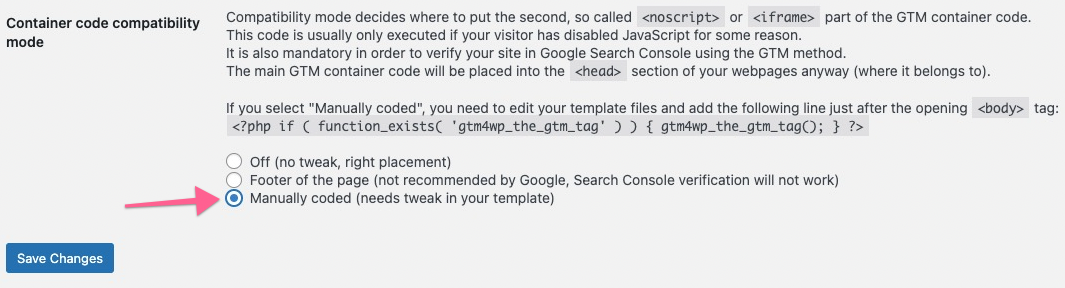
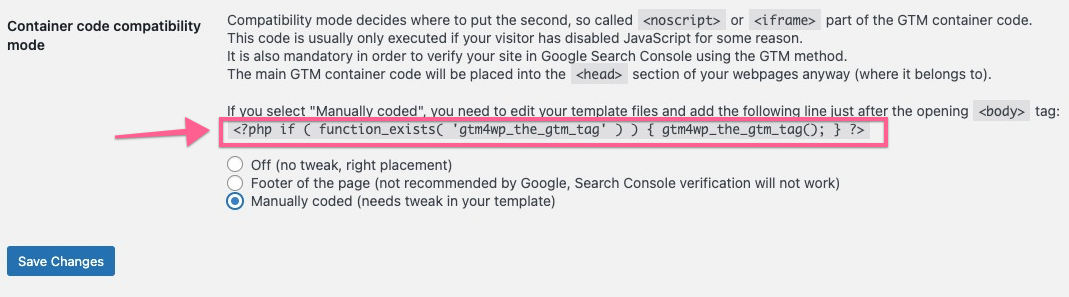
After selecting this, visit the website in a new tab or window and make sure everything looks right. If it does, you can move on to the next step of QA-ing the installation . - Option 2: Manually Coded — with this option, you will need to make a small edit to your theme files. If your WordPress theme allows you to make changes and you’re comfortable with the theme editor, you can use this option. Select the “Custom (needs tweak in your template)” container code placement and click on “Save Changes.”
- Copy the php code provided by the plugin and click on “Save Changes”
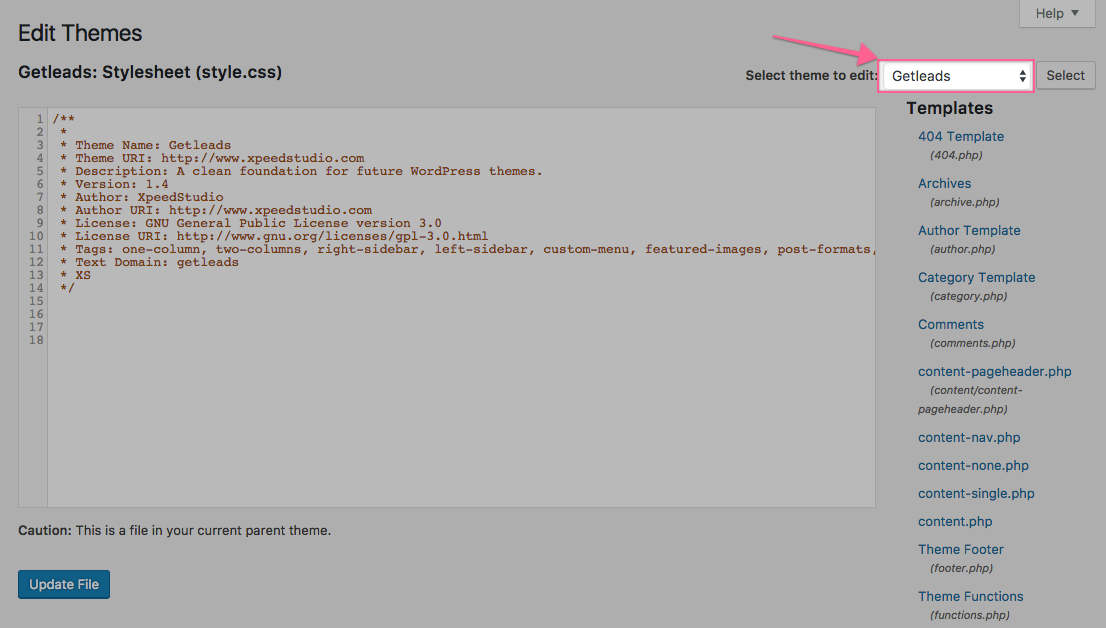
- In the WordPress sidebar, go to Appearance > Theme Editor
- Make sure that you are editing the Theme that you currently have installed in your site (you can go to Appearance > Themes to check the name of the theme you are using)
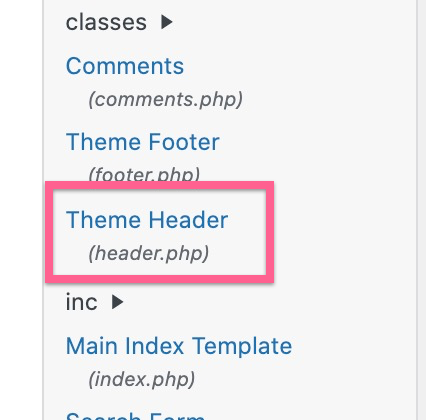
- Select the “Theme Header” template from the list on the right
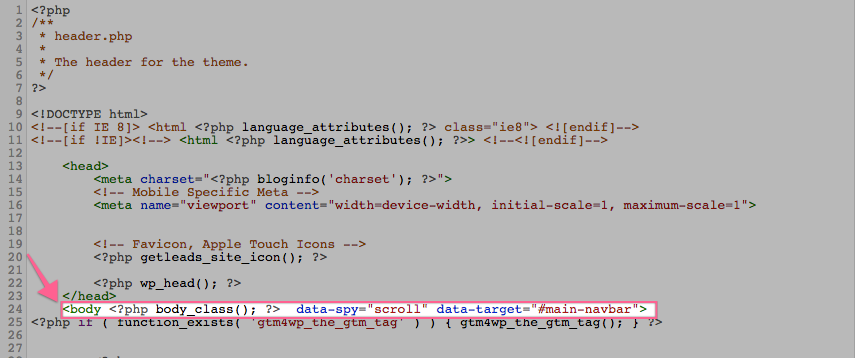
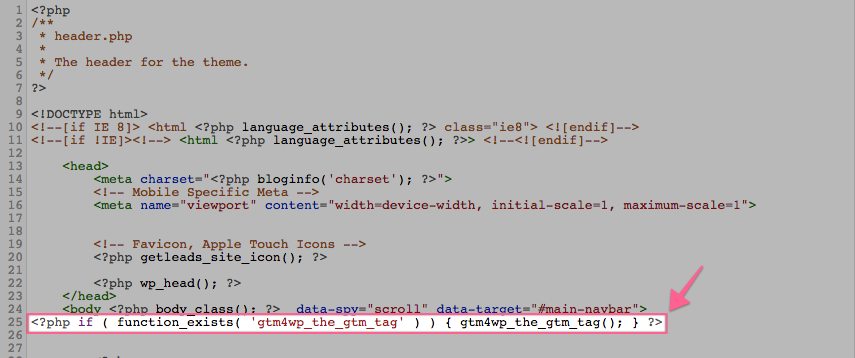
- This template is different depending on the theme that you have installed. However, you will always be able to find an opening <body> tag in the code.
- Paste the php code provided by the plugin right below the opening <body> tag.
- Click on “Update File”
- Copy the php code provided by the plugin and click on “Save Changes”
- Option 1: Off — with this option, the plugin will try to figure out the right placement for the container for you. This is the easiest option but there’s a small risk it might break something on the frontend of your site. If you decide to go with codeless injection, select this option from the list and click “Save changes”
QA your installation
- Open your website homepage using Chrome.
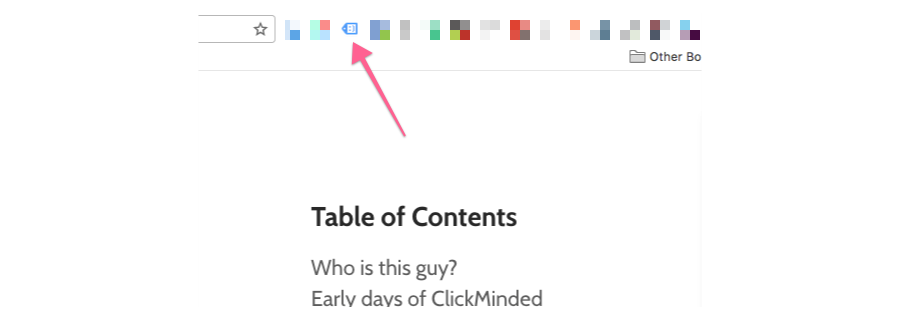
- Click on the Google Tag Assistant Chrome Extension
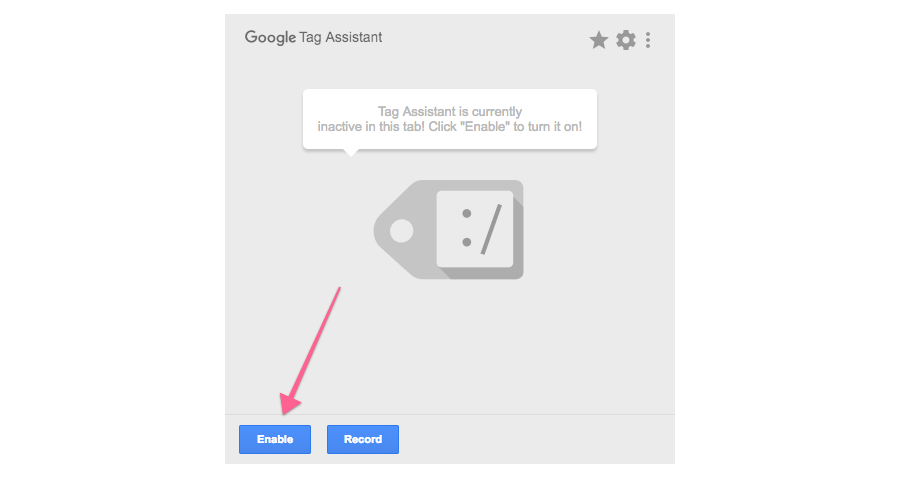
- Click on “Enable”
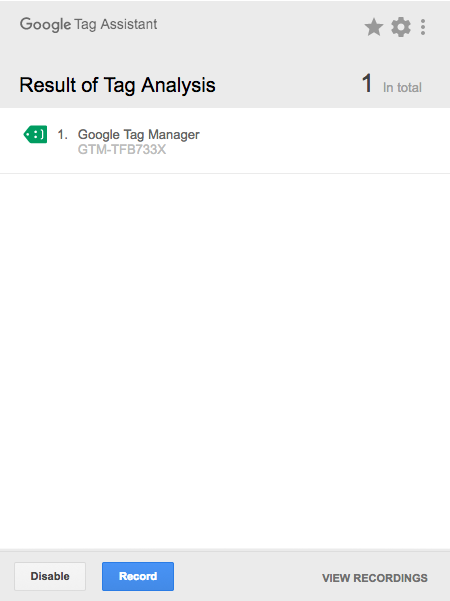
- Refresh the page and click on the Google Tag Assistant Chrome Extension again
- You should see a green tag for Google Tag Manager, indicating that the installation was successful.
Posted in Uncategorized